 Homelab Hand
 Sign-in, SSO & config backup
Sign in with Google or Apple, and back the whole hub up to Google Drive.
Sign in with Google or Apple
Instead of typing your password, you can sign in to the hub (in the browser and in the apps) with a Google or Apple account that you've linked to your hub user.
How it stays safe:
- No new accounts: a Google or Apple sign-in never creates an account. Only accounts already linked to a hub user can sign in, so having a Google account isn't enough to get in.
- Linked by ID: the link is to the provider's stable account ID, not the email address.
- 2-step still applies: if you use 2-step verification, the hub still asks for the code.
- Protected round trip: the hub uses state, nonce and PKCE (Google), and each sign-in link works once, for 10 minutes.
1. Give the hub a public https address
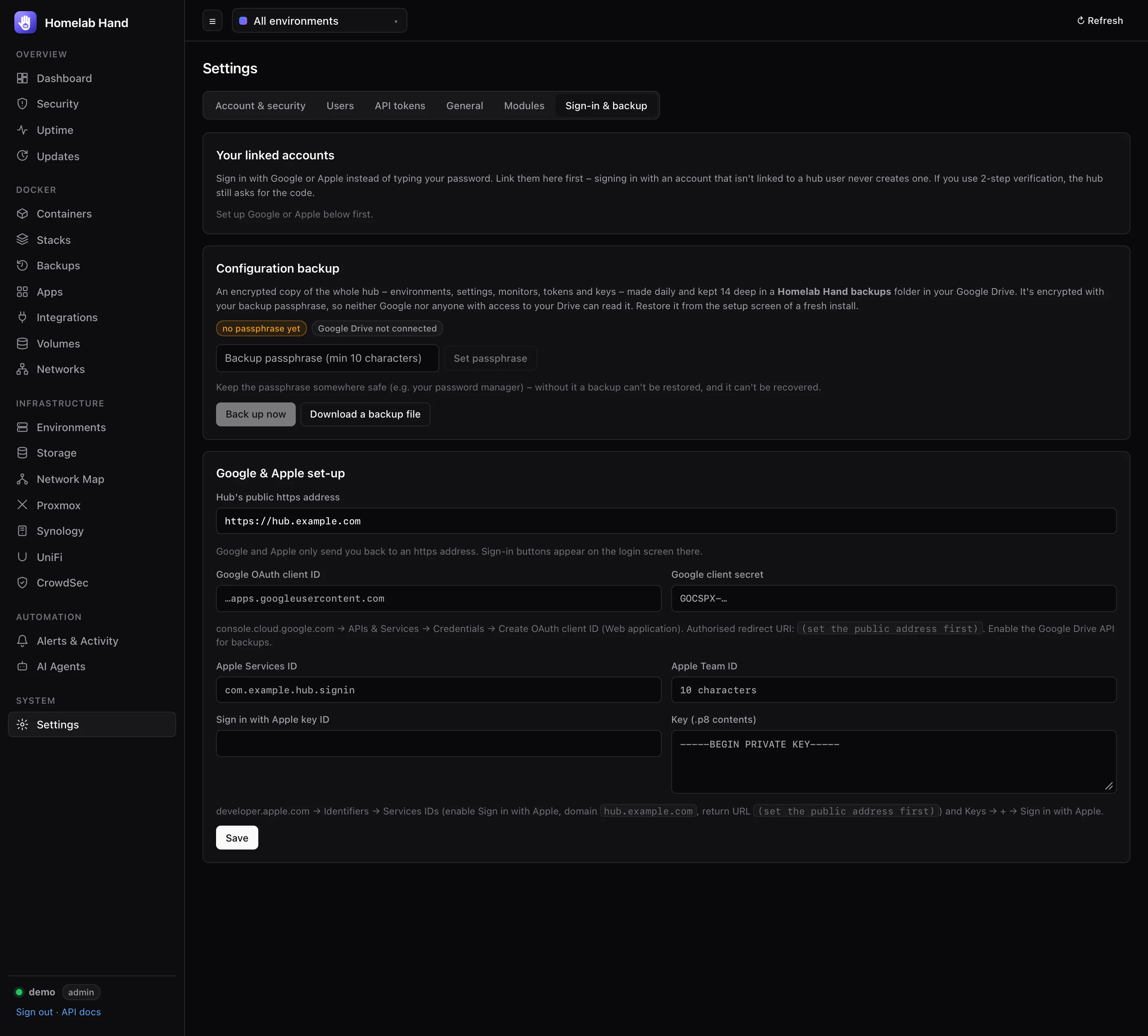
Google and Apple only send you back to an https address. In Settings → Sign-in & backup → Google & Apple set-up, enter the hub's public address, e.g. https://hub.example.com (your Cloudflare Tunnel or reverse-proxy hostname). The form then shows the exact redirect URLs to register.
2a. Set up Google
- Create a projectat console.cloud.google.com (or use an existing one).
- OAuth consent screenChoose External, fill in the app name (e.g. "Homelab Hand") and your email. Add yourself as a test user, or publish the app.
- Create credentialsAPIs & Services → Credentials → Create credentials → OAuth client ID, type Web application.
- Authorised redirect URIPaste the one the hub shows:
https://hub.example.com/api/auth/oauth/google/callback. - Enable the Google Drive APIAPIs & Services → Library → Google Drive API → Enable. This is only needed for configuration backups.
- Paste into the hubthe client ID (
…apps.googleusercontent.com) and client secret (GOCSPX-…), then Save.
2b. Set up Apple
Needs a paid Apple Developer account.
- Services IDdeveloper.apple.com → Certificates, Identifiers & Profiles → Identifiers → + → Services IDs. Give it an identifier like
com.example.hub.signin. - Enable Sign in with Appleon the Services ID → Configure: primary App ID (any of yours), domain
hub.example.com, return URLhttps://hub.example.com/api/auth/oauth/apple/callback. - Create a keyKeys → + → Sign in with Apple (linked to the same App ID). Download the
.p8and note its Key ID. - Paste into the hubthe Services ID, your Team ID (10 characters, top right of the developer site), the key ID, and the whole
.p8file including the BEGIN/END lines. Then Save.
3. Link your account
Under Your linked accounts, press Link Google account or Link Apple account and sign in. The linked account appears in the list (Unlink removes it). Each user links their own. From then on, the sign-in screen shows Sign in with Google / Sign in with Apple.
Apple's "Hide my email" is fine. The link uses Apple's account ID, not the email address.
Configuration backup
A configuration backup is an encrypted copy of the whole hub: every environment, setting, monitor, integration, user, token and key. It's what you need to rebuild the hub itself on a new server. (Your containers' own data is covered by Backups & deployments.)
How it's protected
- The backup (
.hhbak) is encrypted with AES-256-GCM, using a key derived from your backup passphrase (scrypt). Without the passphrase, the file is useless, including to Google. - It includes the hub's secret key, so the stored credentials can be re-encrypted for the new install on restore.
- Sign-in sessions are left out.
- Google Drive access uses the
drive.filescope: the hub can only see files it created itself, in a Homelab Hand backups folder.
Setting it up
- Set a backup passphraseat least 10 characters. Keep it in your password manager. Without it a backup can't be restored, and it can't be recovered.
- Connect Google Drive(after the Google set-up above, with the Drive API enabled). The hub then backs up daily and keeps the newest 14.
- Or download a fileDownload a backup file gives you a
.hhbakto store wherever you like, with no Google needed. Back up now uploads one to Drive straight away.
If a scheduled backup fails, you get a backup.failed alert.
Restoring onto a fresh install
- Install the hubon the new server as usual (see Installation). Don't create an admin.
- On the setup screenchoose Restore from Google Drive with Google (pick the backup from the list), or Restore from a backup file (.hhbak) and upload it.
- Enter the passphraseThe hub decrypts the backup, re-encrypts every stored credential for this install's own secret key, and restarts.
- Sign inwith your old username and password (or Google / Apple). Everything is back. Agents and apps reconnect by themselves if the address stayed the same.
A restore replaces the new hub's database completely. It's meant for fresh installs, or for rolling a hub back to a known-good state.