 Homelab Hand
 First steps
Create the admin account, turn on 2-step verification, add users and choose your modules.
Once the hub is running, the first ten minutes are about securing it and switching on what you need. This page walks through them in order.
Create the admin account
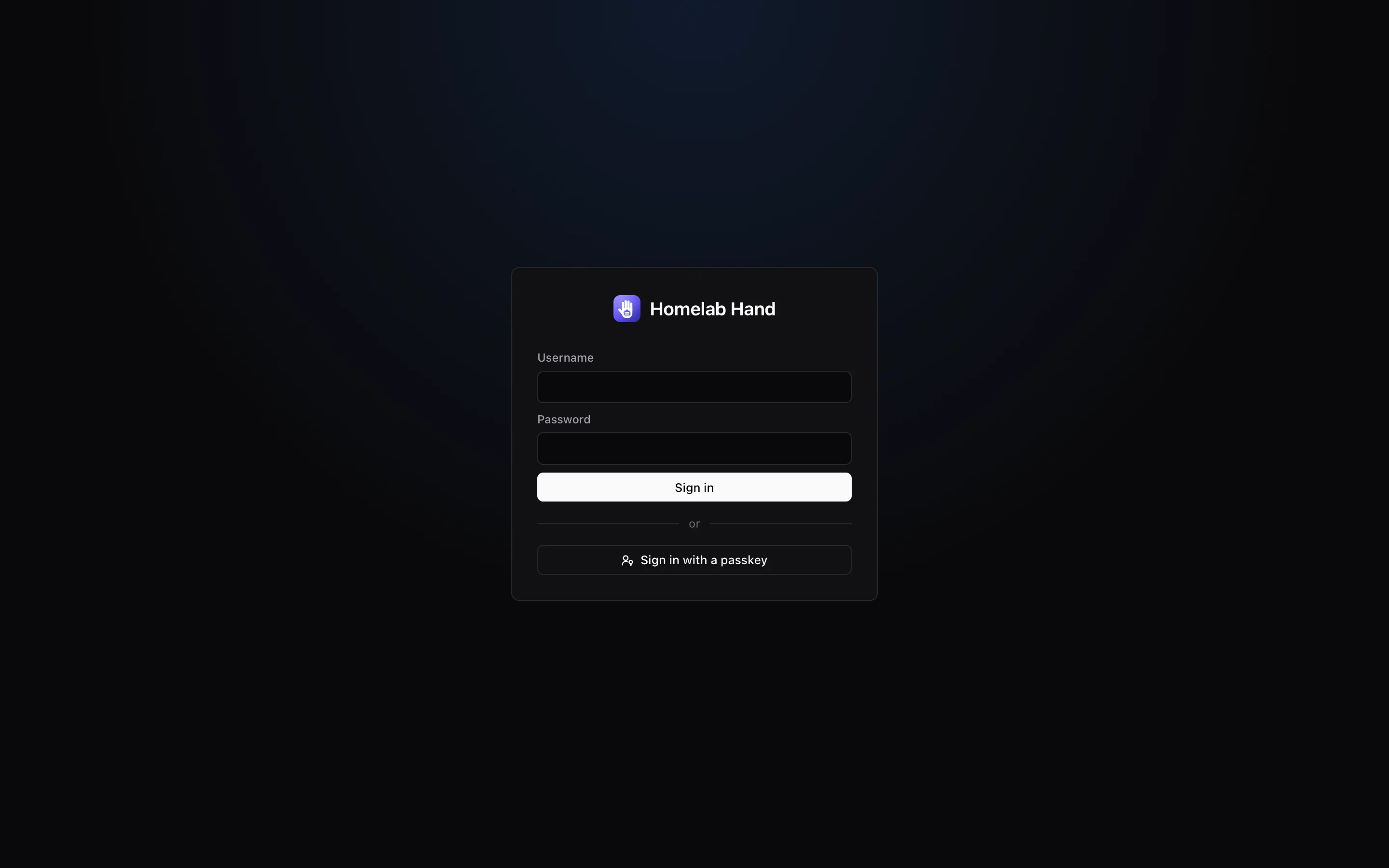
- Open the hubat the address you configured (
HUB_ORIGIN), e.g.https://hub.example.comorhttp://192.168.1.20:8756. - Create the first adminChoose a username and a long password. The first account is always an admin.
- Restoring instead?A fresh install can restore a configuration backup from the setup screen, either from Google Drive or a
.hhbakfile. Everything comes back, including environments, settings, monitors and keys.
Until the first account exists, whoever opens the page first can create it. Do this straight after installing, and don't expose a fresh hub to the internet.
Turn on 2-step verification
Go to Settings → Account & security:
- Authenticator app (TOTP): scan the QR code with 1Password, Google Authenticator, Authy or similar, then confirm a code.
- Passkeys: Touch ID / Face ID, Windows Hello, an Android phone or a hardware security key. Passkeys need HTTPS on the
HUB_RP_IDhostname, orhttp://localhost. They don't work on a bare IP. - Once TOTP or a passkey is set up, password sign-in always asks for the second factor. A passkey on its own can sign you in without a password.
- Google / Apple: optionally link your account to sign in with one tap. See Sign-in, SSO & config backup.
Add users
Settings → Users adds accounts with one of two roles:
| Role | Can |
|---|---|
| admin | Everything: start/stop, deploy, update, change settings, add environments, manage users. |
| viewer | See every page, but every action button is hidden. Good for family members or a wall display. |
Admins can reset another user's 2-step verification if they lose their phone.
Choose your modules
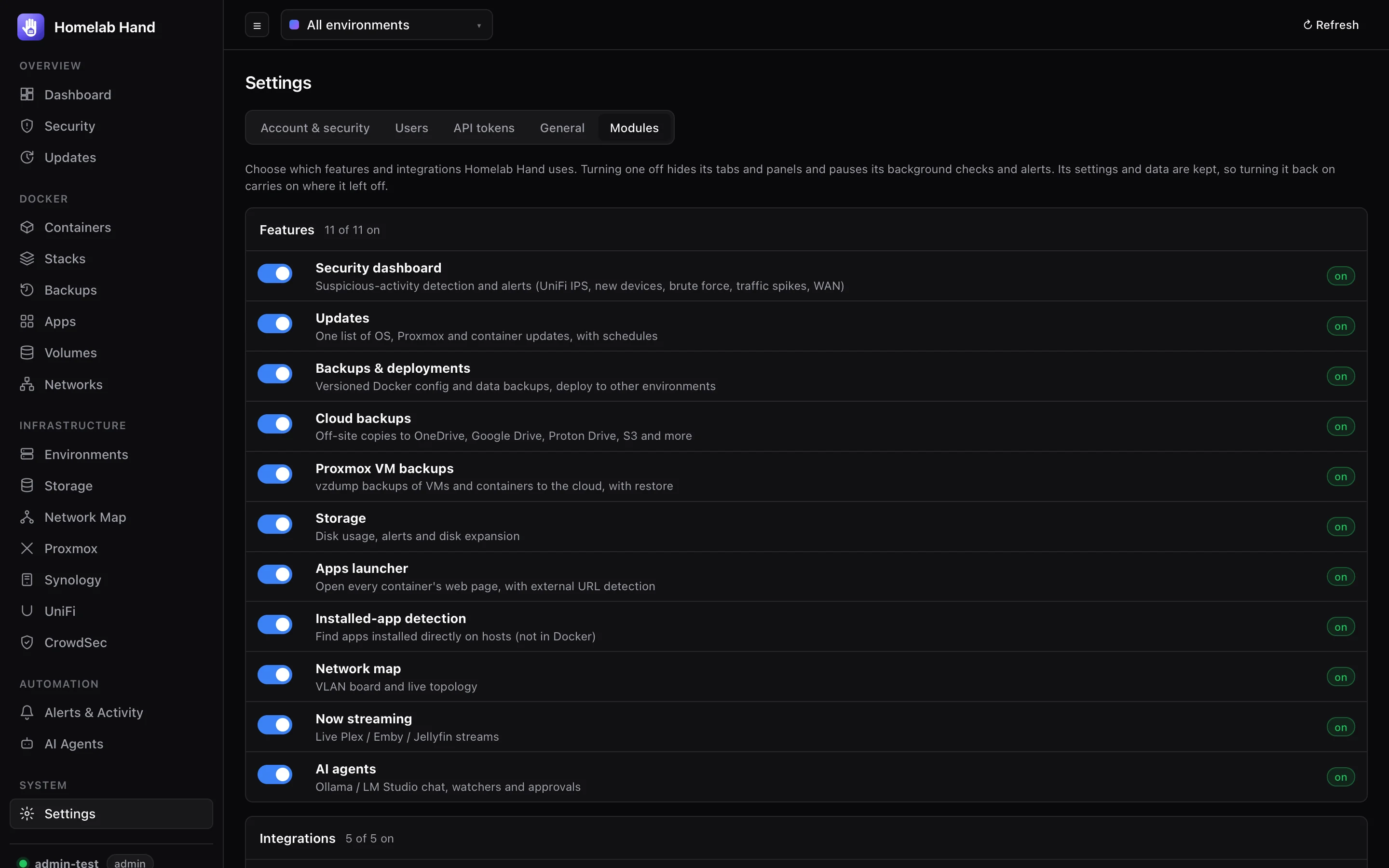
Everything optional is a module. Turning one off hides its pages and panels and pauses its background polling, schedules and alerts. Its configuration and data are kept, so turning it back on picks up where it left off.
- Features: Security dashboard, Updates, Backups & deployments, Cloud backups, Proxmox VM backups, Storage, Apps launcher, Installed-app detection, Network map, Now streaming, Uptime monitors, App integrations, AI agents.
- Integrations: Proxmox, Synology, TrueNAS, UniFi, UniFi Protect cameras, CrowdSec, Wazuh.
- Off by default: TrueNAS and Cameras. Everything else starts on.
- Always on: Dashboard, Containers, Stacks, Volumes, Networks, Environments, Alerts and Settings.
Find your way around
- Sidebar: grouped into Overview, Docker, Infrastructure, Automation and System. Badges show things that need you, such as pending updates.
- Environment switcher (top bar): scopes Containers, Stacks, Images, Volumes and Networks to one environment, or All environments. Each environment has a colour used throughout the UI. Change the colour or name with ✎.
- Refresh (top right): reloads the current page now. Pages also refresh by themselves.
- API docs: the link at the bottom of the sidebar opens the interactive REST API reference (
/api/docs).