 Homelab Hand
 iPhone, iPad & Mac apps
The native Homelab Hand app: connecting, Cloudflare Access, push, Siri, the Mac app and TestFlight.
Homelab Hand has a native app for iPhone and iPad, and a Mac app built from the same code. The iPhone app has native screens for the things you check on the go. The Mac app mirrors the full web hub, page for page.
Getting around
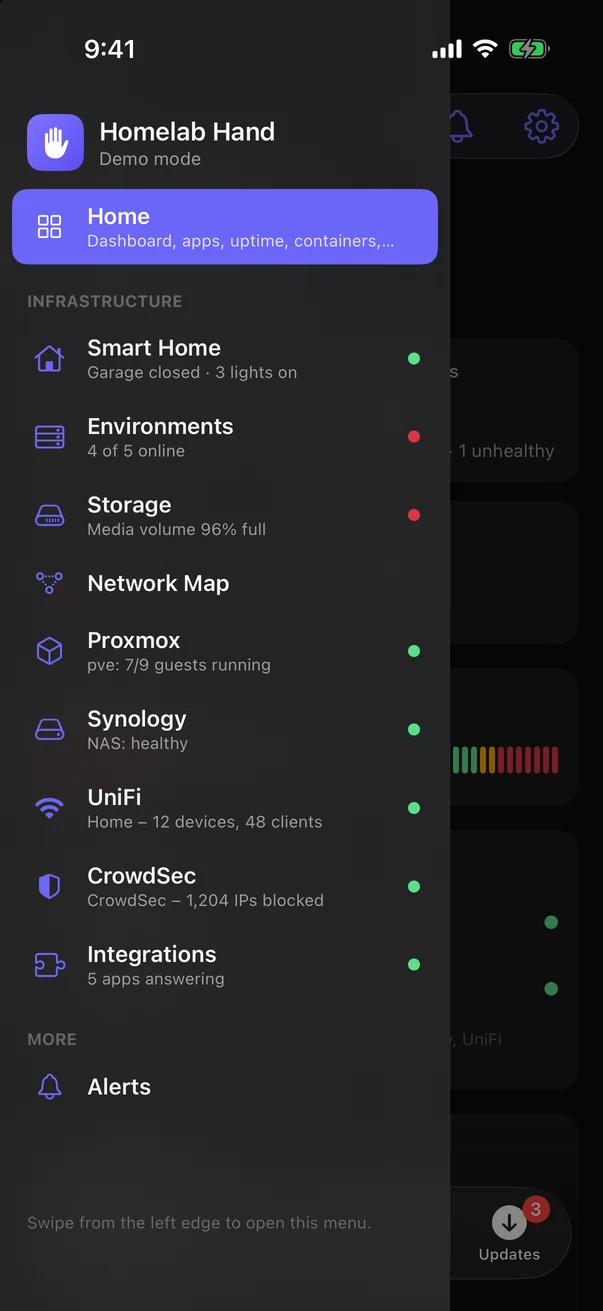
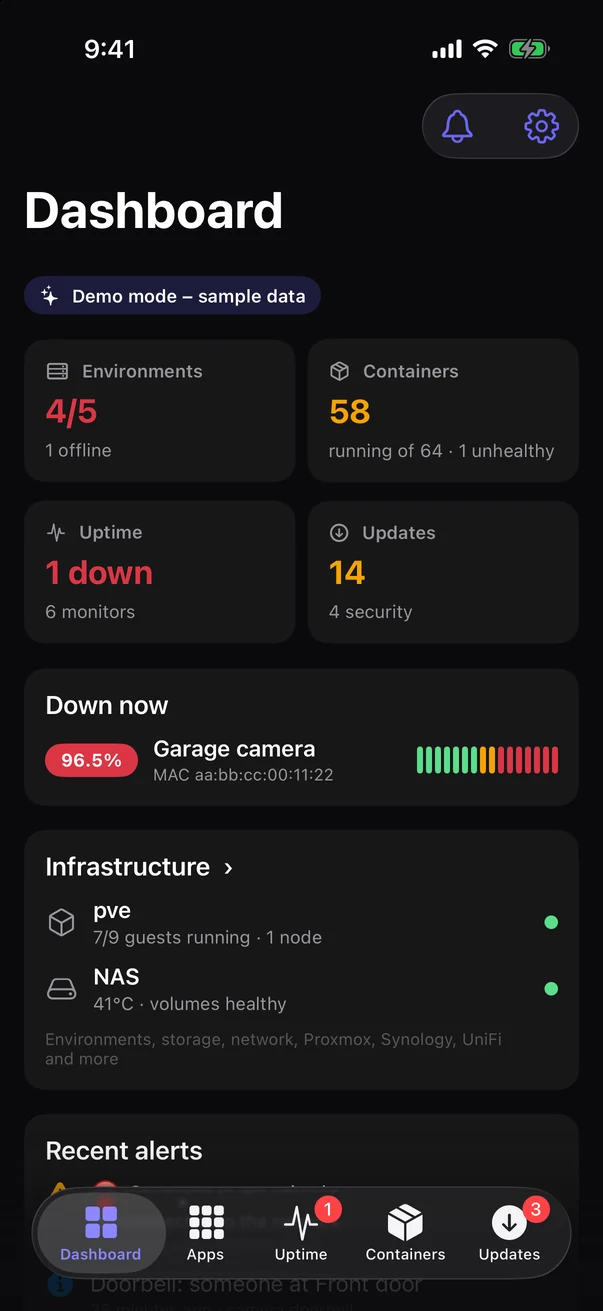
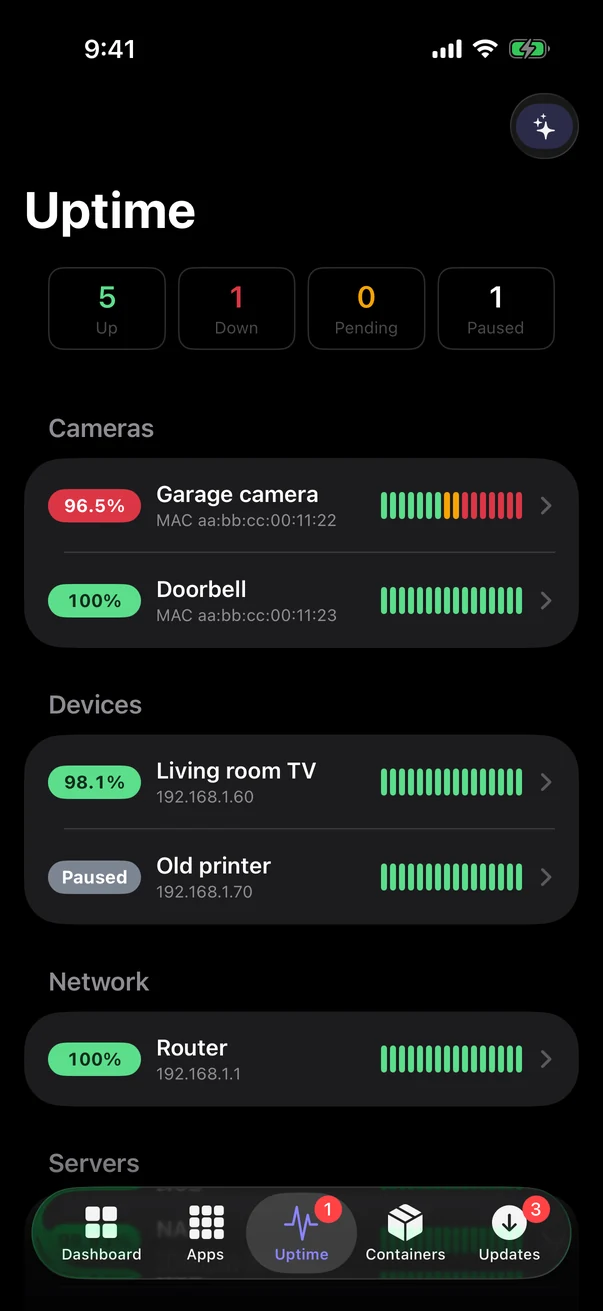
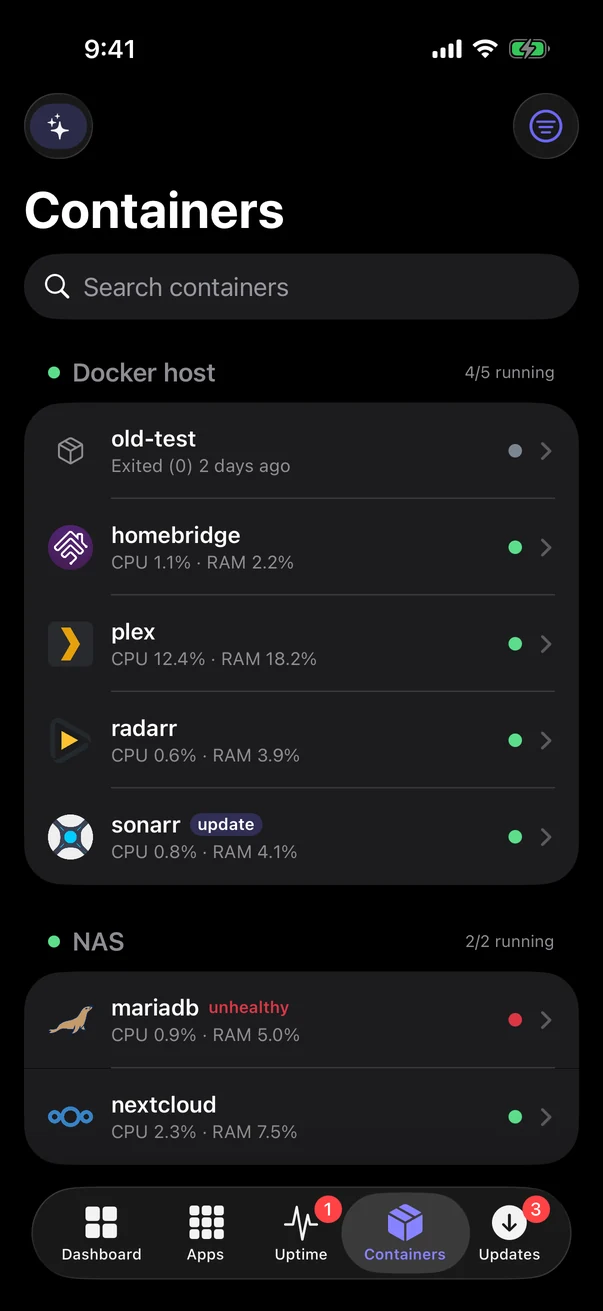
- Tabs along the bottom: Dashboard, Apps, Uptime, Containers and Updates.
- The side menu: swipe in from the left edge of the screen, or tap ☰ on the Dashboard, for every infrastructure module, each with a live status line and a green/red dot. Smart Home, Environments, Storage, Network Map, Proxmox, Synology, TrueNAS, UniFi, CrowdSec, Cameras and Integrations open full screen, with ☰ to get back to the menu. Home returns to the tabs.
- Inside a page you've drilled into (e.g. a monitor's details), the left-edge swipe goes back as usual. The menu opens from top-level screens.
- Close the menu by tapping outside it or swiping it to the left.
What's in the iPhone app
| Screen | What it does |
|---|---|
| Dashboard | Environments, containers, uptime and pending updates (with security count), Proxmox and Synology health, monitors that are down right now, and recent alerts. Tap Infrastructure (or ☰) to open the side menu. |
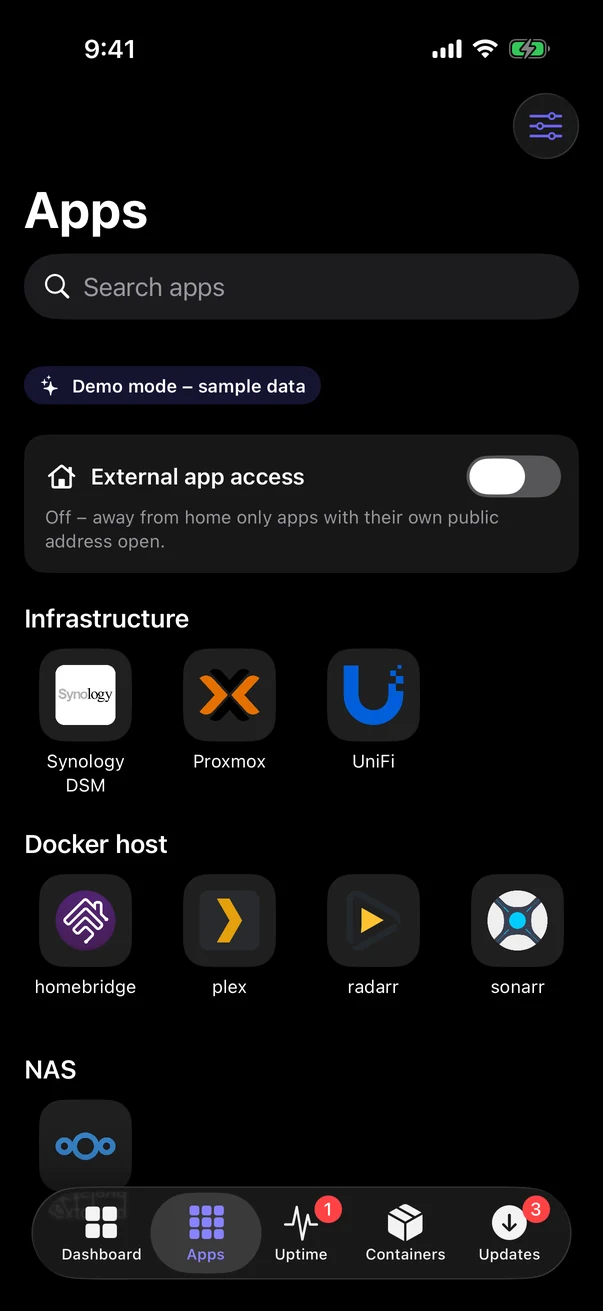
| Apps | Every app's web page, opened inside the app through the hub's gateway, with the External app access switch at the top. |
| Uptime | Monitors by group with uptime % and heartbeat bars. Swipe to pause/resume or check now. Each monitor has response and uptime stats, a response-time chart (1 hour to 30 days; tap to inspect, down periods marked) and status changes. |
| Containers | Every container by environment, with CPU/RAM, health and update badges. Start, stop, restart and view logs. |
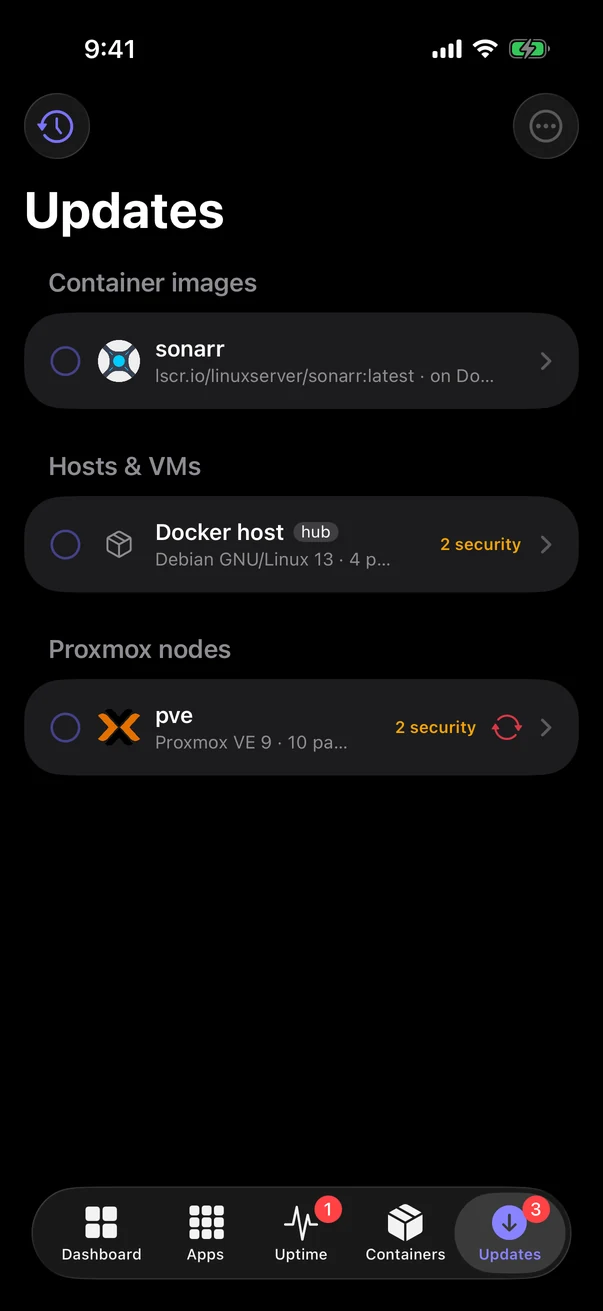
| Updates | Container images, hosts & VMs and Proxmox nodes. Select and install, with history. |
| Alerts | The hub's event log, filterable by severity (the bell on the dashboard). |
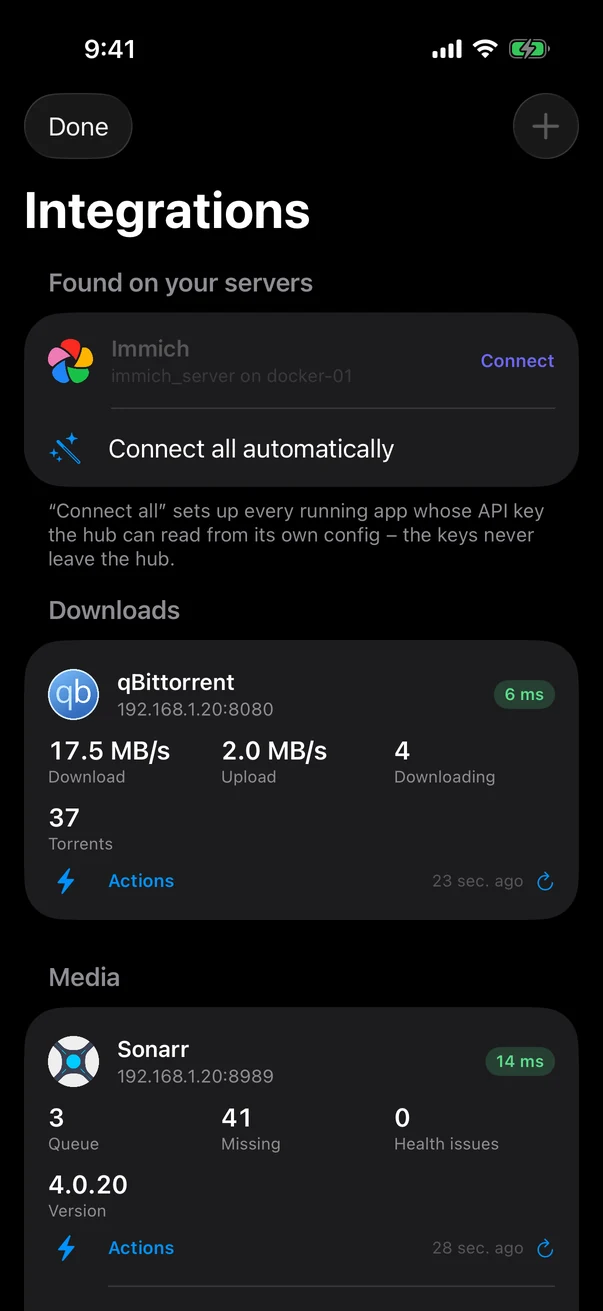
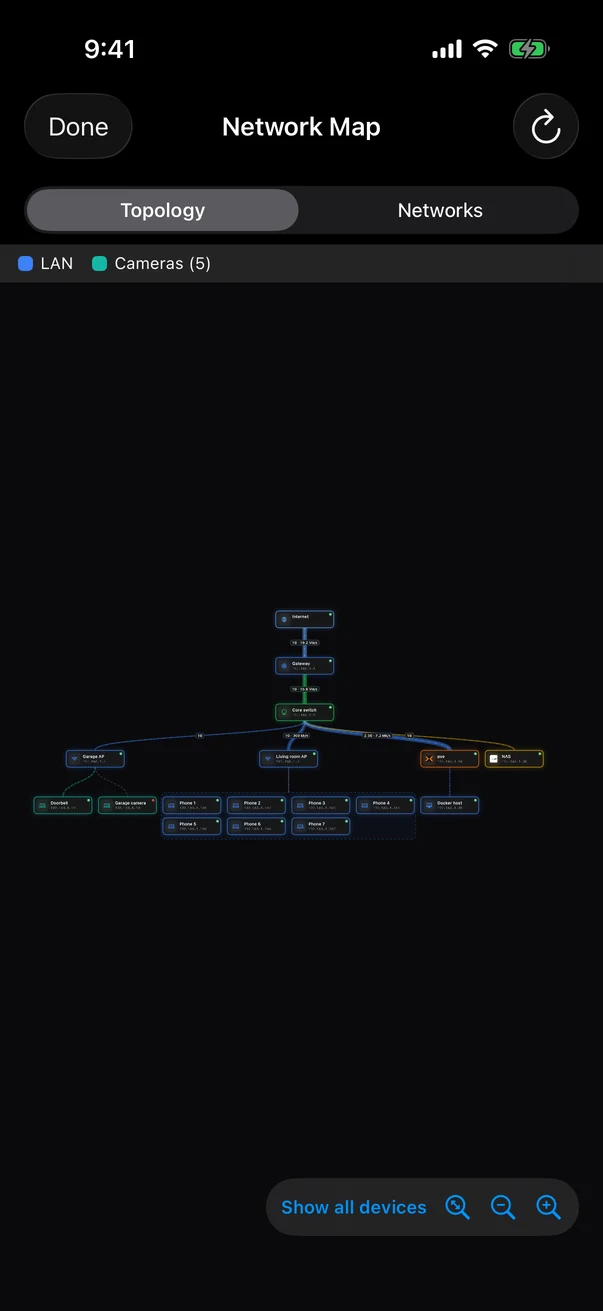
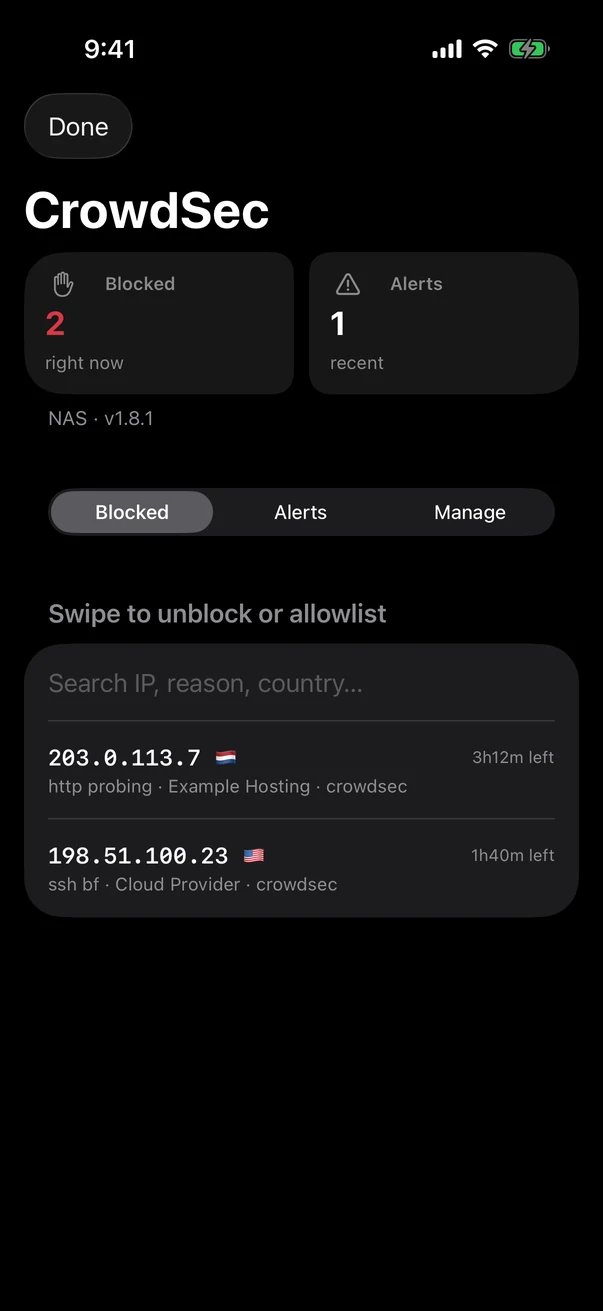
| Side menu | Every module the hub has switched on, with a live status line – all native, using the app's own sign-in: Smart Home (Homebridge, Home Assistant and Apple Home), Environments (status, OS, containers, check / install OS updates, test, reboot), Storage (every disk and pool by how full it is), Network Map (pinch to zoom, VLAN colours, live traffic), Proxmox (nodes with CPU/RAM, every VM and LXC – start, shut down, reboot, stop), Synology (health, volumes, disks, test SSH, restart / force restart), TrueNAS (pools, disks, alerts, apps), UniFi (WAN, devices with firmware updates, networks), CrowdSec (blocked IPs, swipe to unblock or allowlist, alerts, management), Cameras (every camera, full-screen view, detections timeline) and Integrations. |
| Settings and full hub | Every page of the hub, as on the web. Also server switching, push and Face ID settings, and sign out. |
Installing the app (TestFlight)
While the app is in beta, it's distributed through Apple's TestFlight.
- Get an inviteThe hub's owner adds your Apple ID email as a tester in App Store Connect (TestFlight → Internal / External testing), or shares a public TestFlight link.
- Install TestFlightfrom the App Store, on the iPhone or iPad.
- Accept the inviteOpen the email or link on the device and tap Install. New builds arrive automatically, and TestFlight tells you what changed.
TestFlight builds expire after 90 days, but a new build normally arrives well before that. Every hub update comes with a new app build.
Connecting to your hub
Add a server
Add your hub by IP for use at home (e.g. 192.168.1.20:8756) and by URL for use away (your Cloudflare or reverse-proxy address). An address without http(s):// uses http for local and private addresses and https for everything else. Swipe a server to edit it.
Sign in
- Username and password, plus the code from your authenticator app if 2-step verification is on.
- Sign in with Google / Apple uses the account linked to your hub user (hub → Settings → Sign-in & backup). The sign-in happens in a secure system sheet, and the app gets a one-time code, protected with PKCE so an intercepted code is useless.
- The app then creates its own API token on the hub, kept in the Keychain, so you stay signed in. Revoke it under Settings → API tokens to sign that device out.
- Passkeys aren't available in the app, because iOS only allows them for domains an app is registered for.
Cloudflare Access service tokens
If your hub is behind Cloudflare Access, the app can skip the SSO page with a service token:
- Create the tokenCloudflare Zero Trust → Access → Service auth → Service tokens → Create service token. Copy the Client ID and Client Secret (the secret is shown once).
- Allow itIn the hub's Access application, add a policy with action Service Auth that includes the token.
- Add it in the appAdd server → your hub's URL → turn on Cloudflare Access service token → paste both → Test connection.
The token is sent with every request and stored in the Keychain. Cloudflare's CF_Authorization cookie is kept fresh for the hub pages' API calls and WebSockets (terminal, live camera video).
Self-signed certificates
For an https address on your network with its own certificate, turn on Allow self-signed certificate. The app remembers the certificate on first connection and refuses to connect if it changes. Use Forget saved certificate after renewing it.
Sync between your devices
With Sync servers with iCloud on, your server addresses and Cloudflare service tokens are synced end-to-end encrypted through iCloud Keychain. On a new iPhone, iPad or Mac, tap Get my servers from iCloud. Hub sign-ins themselves aren't synced: each device signs in and gets its own token, which you can revoke separately.
Windows and Android don't have an app. Use the hub in a browser instead; it works well on phones and can be added to your home screen. iCloud Keychain sync is Apple-only.
Push notifications
Recommended for most people: get alerts through a notifications app such as Pushover, ntfy, Telegram or Discord, added on the hub under Alerts & Activity → Webhooks. It needs no developer account.
If you have a paid Apple Developer account, alerts can come straight to this app through Apple Push Notification service. The hub needs your APNs key once (see iPhone push notifications). Then, in the app, allow notifications and pick a minimum severity per device: everything, warnings and critical, or critical only. Tapping a notification opens Alerts.
Siri and Shortcuts
- "Open Garage Door with Homelab Hand", "Turn on Kitchen Lights in Homelab Hand": controls any Smart Home device. See Smart Home & Siri.
- "What's down in Homelab Hand?" (also "Check Homelab Hand"): tells you which monitors are down and how many environments are offline or containers unhealthy, or that everything is up.
- "Restart a container with Homelab Hand": asks which container, then restarts it.
Both appear in the Shortcuts app, so you can put them on the Home Screen, in automations or on an Action button.
Face ID
Require Face ID (in the app's settings) locks the app whenever it's opened, so someone holding your unlocked phone can't open your lab.
Demo mode
Try the demo on the servers screen shows the whole app with sample data and no hub. It's useful for a look around (and it's what App Review uses). Leave demo returns to your servers.
The Mac app
The Mac app is a 1:1 mirror of the web hub: every page, with a native window, sidebar and menus. It shares the iPhone app's server list, Cloudflare token support, iCloud Keychain sync and Google/Apple sign-in. It's currently installed directly rather than through TestFlight.
Building it yourself
The app's source is in ios/. It needs Xcode and XcodeGen:
brew install xcodegen
cd ios
xcodegen generate
open HomelabHand.xcodeproj
Select the HomelabHand target → Signing & Capabilities → your Team, choose your iPhone (or My Mac for the Mac app), and press Run. With a free Apple account, the app has to be reinstalled every 7 days. A paid developer account, or TestFlight, removes that limit, and is needed for push and iCloud Keychain sync.
For TestFlight uploads, ios/release.sh archives with the release Xcode, gives each build a timestamp build number, and uploads it using an App Store Connect API key from ~/.appstoreconnect.