 Homelab Hand
 Network, UniFi & cameras
The live network map, UniFi, and UniFi Protect cameras with live video and detections.
Connecting UniFi
- UniFi OS consoles (UDM, UCG, UX, Cloud Key Gen2+, UniFi OS Server): create an API key under UniFi Network → Settings → Control Plane → Integrations, and add the console under UniFi → + Add UniFi.
- Legacy controllers: use a local account. Read-only is fine.
- Set the site if it isn't
default.
The UniFi page shows the WAN IP and ISP, networks and VLANs, and a device table with firmware updates, client counts and uptime. UniFi also feeds the network map, presence monitors and several security rules.
A UniFi device must be disconnected for three checks in a row (about 3 minutes) before unifi.device_offline is sent. Upgrading, provisioning and adopting don't count, and back online is only sent after an offline alert.
Network map
The map combines UniFi, environments, Proxmox and Synology. Devices are matched by MAC, IP or hostname, so a Proxmox VM that's also an environment and a UniFi client appears once, with all its data.
VLAN view
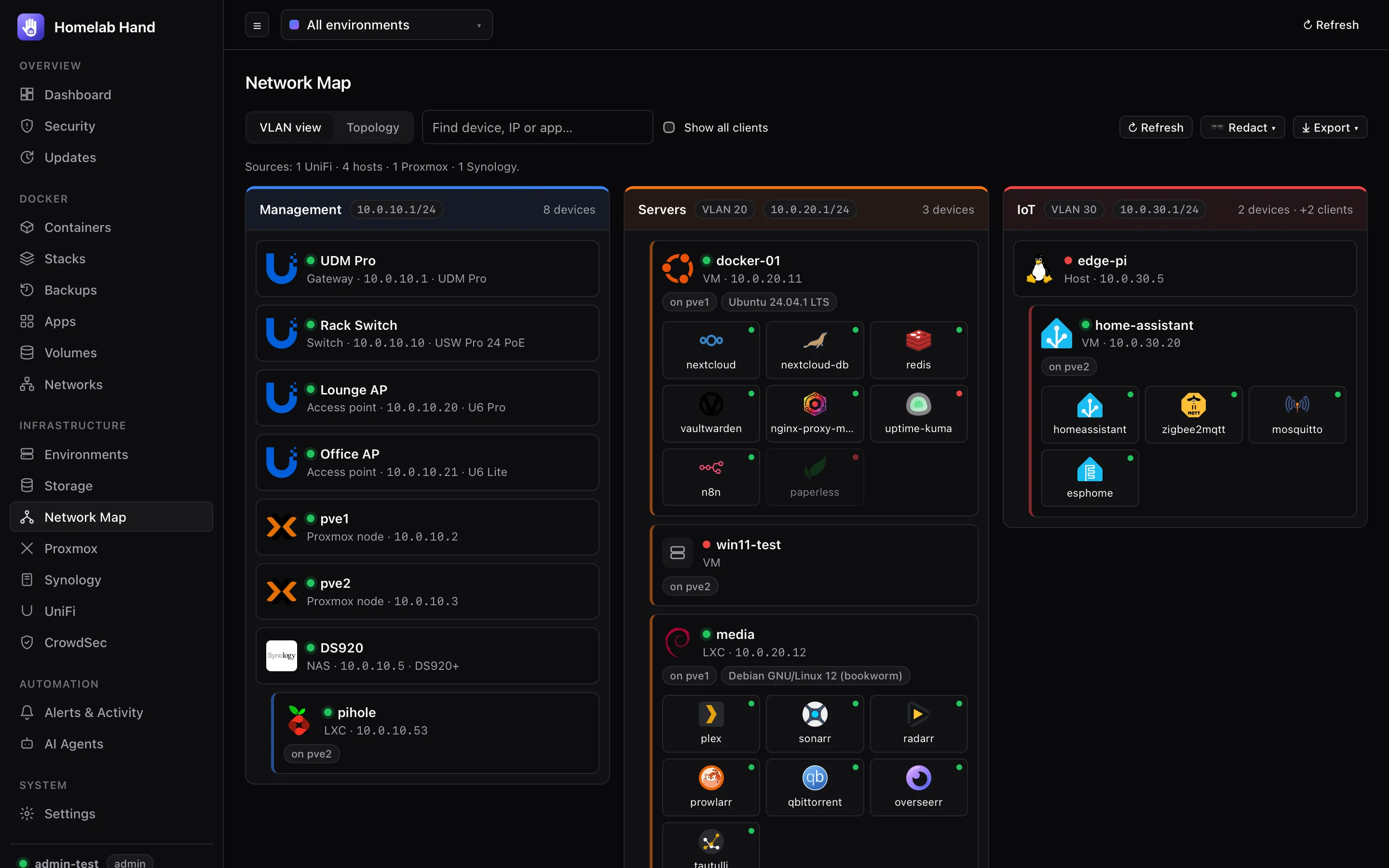
One panel per network/VLAN, with device cards and the icons of everything running on them. Show all clients includes plain UniFi clients too.
Topology view
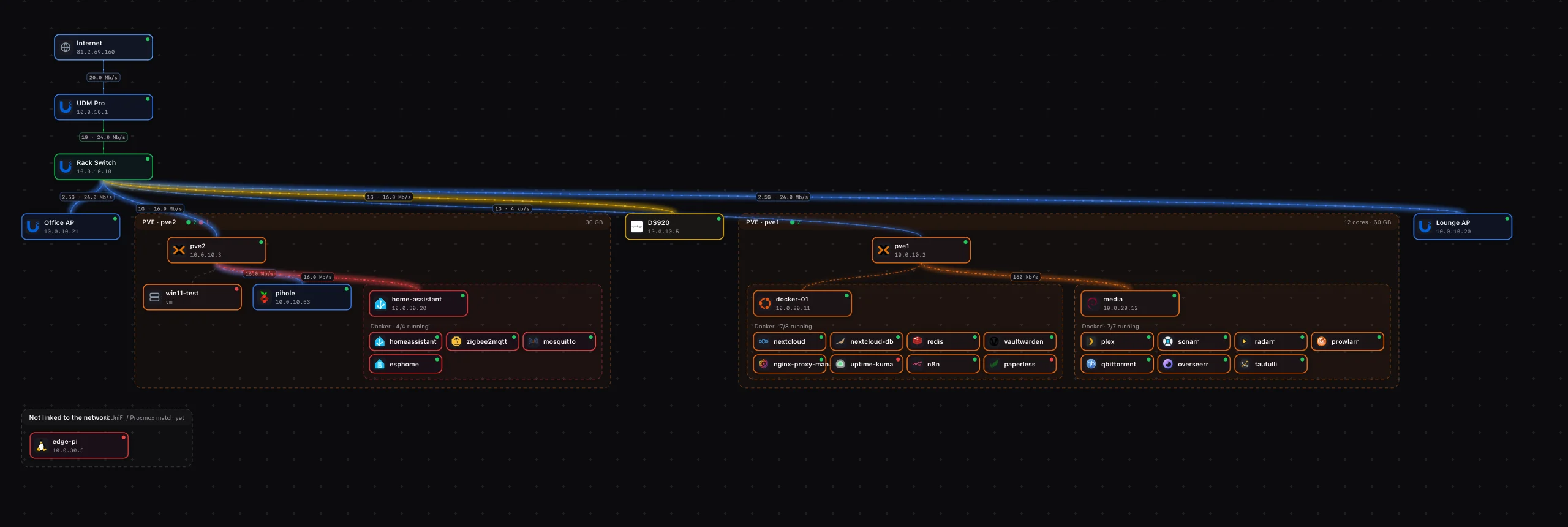
- Layout: automatic, Internet → gateway → switches/APs → devices.
- Boxes: each Proxmox node is a box (PVE · name, cores, RAM, up/down counts) containing its VMs and LXCs. Each Docker host is a box containing its containers.
- Links: coloured by the target device's VLAN. Their glow and animated flow scale with live UniFi traffic (switch ports, uplinks, Wi-Fi, WAN), and they're labelled with port speed and throughput, e.g.
1G · 35.0 Mb/s. Wired links are solid, wireless dashed and Proxmox-to-guest dotted. - VLAN legend: click a VLAN and everything on it pulses while the rest dims.
- Navigation: drag to pan, scroll or +/− to zoom, ⤢ to fit. Click a card for details. It refreshes every 15 seconds in place.
- Not linked box: devices the hub can't place yet (no UniFi/Proxmox match).
Sharing the map safely
- Redact ▾ hides personal details on screen and in exports: device and host names (→ "Proxmox 1", "Client 12"), IP/MAC addresses and subnets, network names (→ "VLAN 20") and container names (→ the app, e.g. "plex"). The choice is remembered in your browser.
- Export ▾: PNG or JPG of the whole diagram at 2× resolution, with title, timestamp and VLAN legend; Print/PDF for the VLAN view.
On iPhone and iPad the map is fully native: pinch to zoom, the same VLAN colours, and animated traffic flow. Tap Show all devices to include every client. See the apps.
Cameras (UniFi Protect)
An optional module, off by default. Turn it on under Settings → Modules → Cameras. Camera pages are admin-only.
- Create an API keyon the console that runs Protect (for example a UNVR, which may not be your gateway): Protect → Settings → Control Plane → Integrations.
- Connect itCameras → + Connect UniFi Protect with the console's address and the key.
- DoneThe hub turns on Protect's RTSPS stream for each camera automatically.
Live view
Every camera as live video: low quality in the grid, full quality with sound when you click one. A bundled go2rtc turns Protect's RTSPS streams into browser video. It listens only inside the container, and the hub relays it over its own WebSocket, so live view also works through a tunnel with no extra ports.
Detections
A timeline of doorbell rings, people, recognised faces, vehicles, licence plates, packages and animals, each with a snapshot. Snapshots are kept for 14 days. Filter by type, by camera, or by recognised faces only.
Camera alerts
Per NVR, under its settings, choose alerts for:
- doorbell rings;
- recognised faces ("Alex at front-garden": people you've named in Protect);
- unknown people, at any time or only at night (these wait about 10 seconds for face recognition first);
- vehicles, plates, packages and animals.
There's a per-camera cooldown, and you choose which cameras alert. Event types: camera.doorbell, camera.face_known, camera.person_unknown, camera.vehicle, camera.plate, camera.package, camera.animal, camera.unreachable.
Protect's API is rate-limited. The hub keeps its requests to a couple at a time and backs off when Protect asks it to, so adding many cameras is fine.