 Homelab Hand
 Containers, stacks & apps
Manage containers and stacks, update images, and open every app's web page through the hub.
Containers
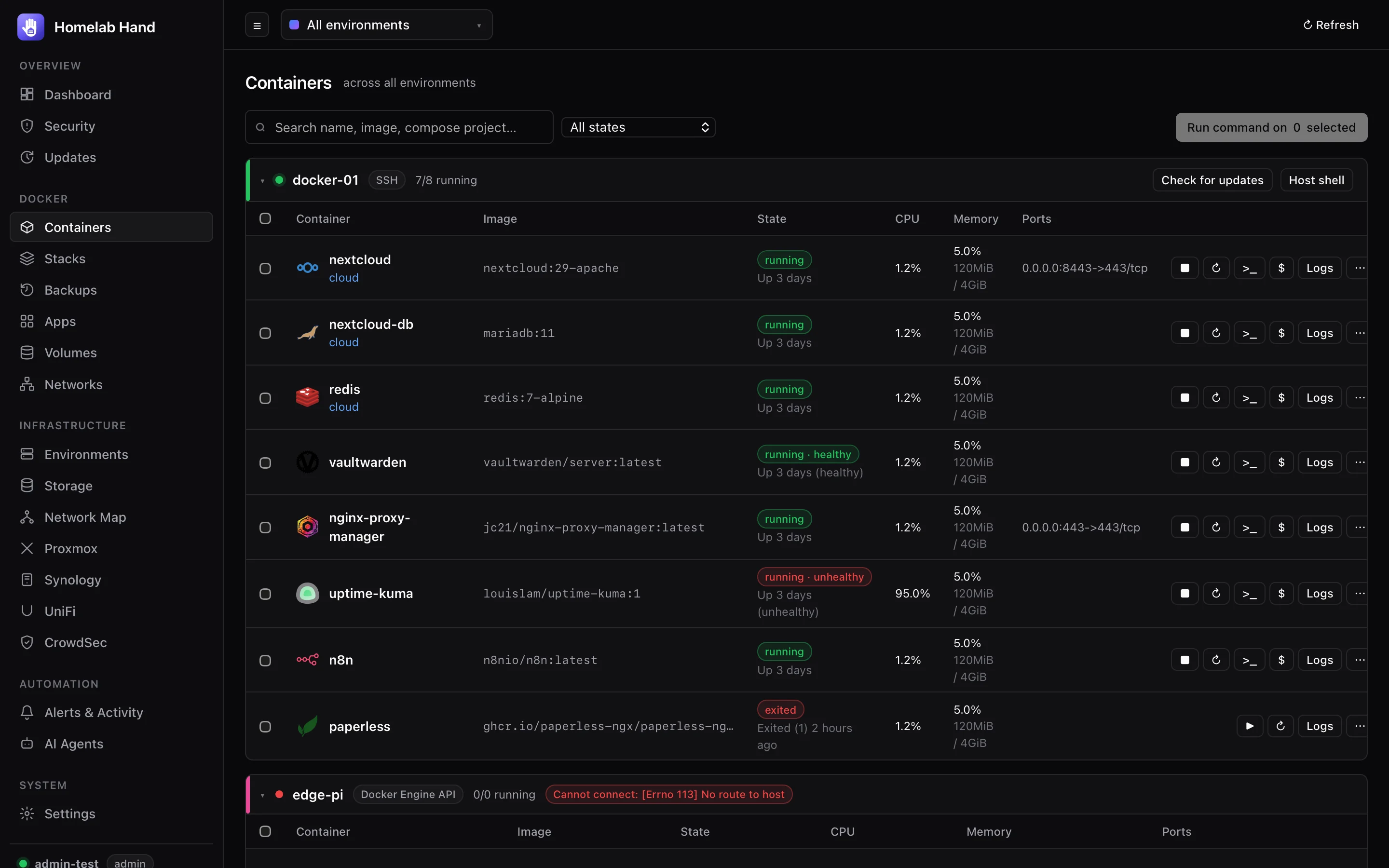
- Each row: icon (matched automatically from dashboard-icons), name, compose project, image, state and health, CPU, memory and ports.
- Row actions: start, stop, restart, terminal (
>_), run a command ($), logs (live tail), inspect, pause, kill and remove. - Bulk commands: tick containers across any environments, then Run command on N selected.
- Host shell: from the environment header, when the connection supports it.
Image updates
Check for updates in each environment header compares every container's image digest with the registry's current digest for the same tag. It uses the Docker daemon's own registry lookup, so private registries you're logged into on that host work too.
| Badge | Meaning |
|---|---|
| ⬆ update available | A newer image exists for the tag. Click to update. |
| ✓ latest | Up to date. |
| local image | Built locally, or not in a registry. |
| pinned digest | The image is referenced by @sha256:. |
| hub (redeploy) | The hub itself. Update it with deploy.sh. |
How an update runs (from the badge, the ⋯ menu or Update all):
- Compose containers:
docker compose pull <service>thenup -d --no-deps <service>in the project's folder. - Standalone containers: recreated the Watchtower way, with identical config, ports, volumes, networks, labels and restart policy. If anything fails, the original is renamed back and restarted.
Checks also run automatically (default every 12 hours) and raise container.update_available. Scheduled installs live on the Updates page.
Stacks
Stacks are discovered from compose labels, plus any you create in the hub.
- Actions: start, restart, stop, down, pull, redeploy, delete. Deleting removes the containers but keeps the volumes.
- New stack / Edit opens the builder:
- Services tab, one card per service:
- Basics: name, image (suggested from images on that host), container name, command, privileged.
- Restart policy and network mode: stack networks, host, bridge, none or
service:<other>. - Ports: host IP, host port → container port, TCP/UDP.
- Volumes: named volume (existing ones suggested), bind mount or tmpfs, read-only.
- Networks: pick existing networks or create new ones.
- Depends-on, environment variables and labels.
- compose.yaml tab: edit the YAML directly. Both tabs stay in sync, and things the form doesn't model (healthchecks,
deploy:,x-blocks…) are preserved. - Environment file tab: written as
.envnext tocompose.yaml.
- Services tab, one card per service:
- Where files go: new stacks are written to
/opt/stacks/<name>/on the host (configurable). Existing stacks are edited in place.
Images, volumes and networks
- Images: size, created, in use / dangling / unused. Pull, remove, prune dangling, prune unused. Reached from Images › on the Apps page.
- Volumes: driver, owning stack, mountpoint, in use. Remove, prune.
- Networks: driver, subnet, gateway, attached containers. Create, remove, prune. Built-in networks are protected.
Apps launcher
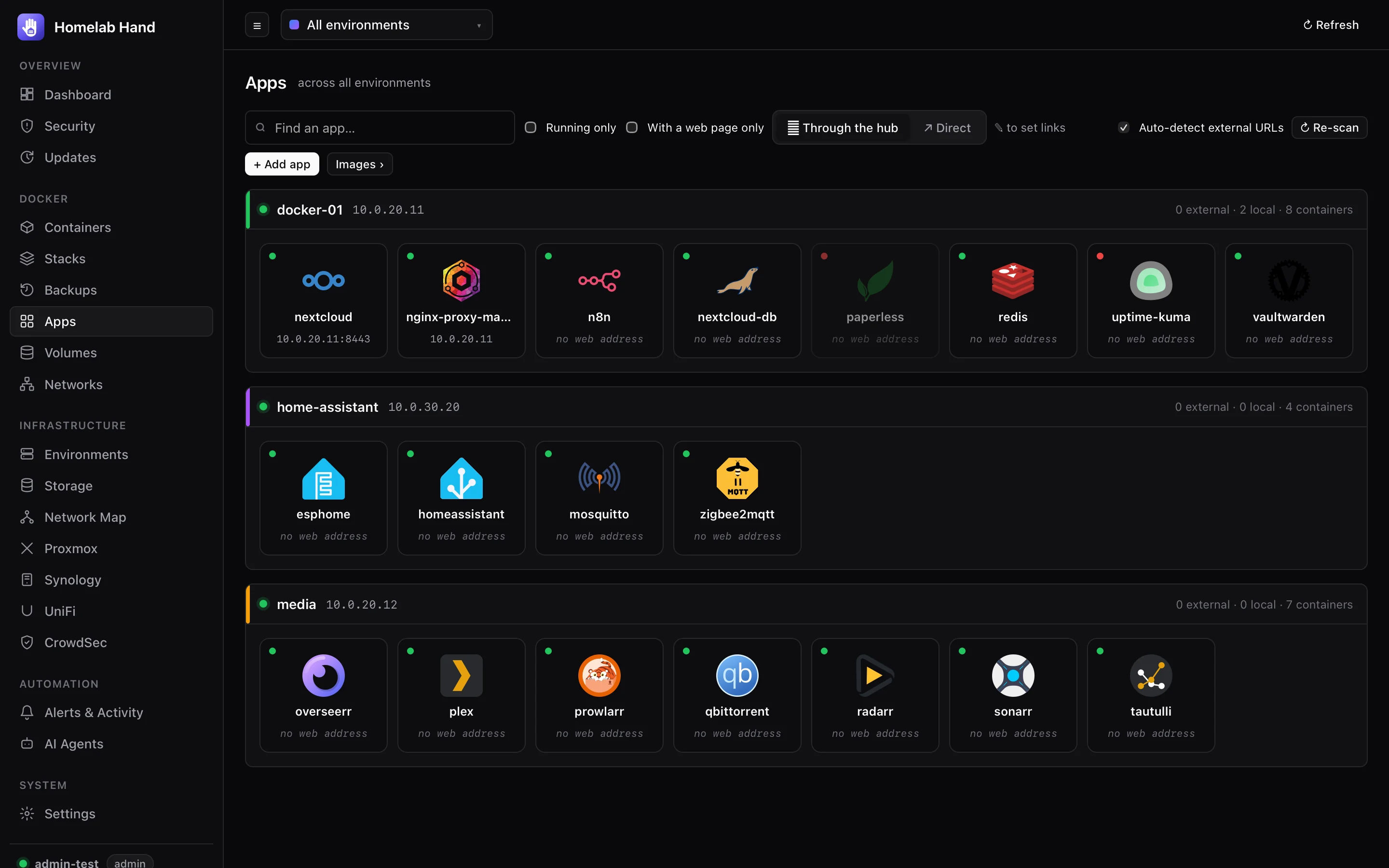
Docker → Apps has one tile per container (icon, name, address), grouped by environment and following the environment switcher. Click a tile to open the app.
- Address detection: the hub works out each environment's address and picks the container's published web port. It skips SSH, DNS, databases, MQTT, other non-web ports and anything bound to
127.0.0.1. Ports 443, 8443, 9443 and 5001 open ashttps://. Admin ports are preferred where an app has one (Nginx Proxy Manager's 81, Traefik's 8080). - External URLs are found by reading routes you already have. The hub never creates or guesses them:
- Cloudflare Tunnel ingress (from cloudflared's logs);
- Nginx Proxy Manager proxy hosts, including tunnel → NPM → app chains;
- Traefik / Caddy labels.
- 🌐 External / 🏠 Local: choose which address a click opens (remembered per browser). The other one is a small corner link on each tile.
- Overrides: ✎ on a tile sets a local and/or external URL (these win over detection), or add a
htech.url=https://…label to the container. - The page refreshes every 15 seconds, so new containers appear by themselves.
Adding your own apps
+ Add app adds anything with a web page that isn't a container, such as Synology DSM, Proxmox, the UniFi console or your router. Give it a name, address, icon (any dashboard-icons name or image URL; leave it empty to guess from the name) and optionally a group. The dialog suggests the web interfaces of your connected integrations and of apps detected on your hosts.
Opening apps through the hub
The switch 🗔 Through the hub / ↗ Direct chooses how apps open. Through the hub opens the app in a window inside Homelab Hand, with the hub fetching it for you. That means every app on any IP or VLAN works from anywhere you can reach the hub.
- On the LAN or a VPN (hub opened as
http://<hub IP>:8756): each app gets its own gateway port (8760–8799) and is served at/, exactly as if opened directly, including WebSockets and logins. - Remotely (hub opened over https): point a hostname at
http://<hub IP>:8757, for example a Cloudflare Tunnel public hostname such asapps.example.com, and enter it under Settings → General → Apps gateway address. Apps are served under/a/<app>/, with links, fetch/XHR, WebSockets and history rewritten automatically. A few single-page apps that insist on living at/may not work this way; use the LAN route for those. - External app access switch (Apps page and Settings → General): when it's off, the remote gateway refuses every request immediately, even for apps already open. LAN access through the per-app ports is unaffected.
- Behind SSO (e.g. Cloudflare Access): the first remote app in a session opens a small pop-up at the gateway address so you can sign in, then closes itself. Putting the gateway hostname in the same Access application as the hub usually makes it just flash.
- Windows: drag, resize, maximise (double-click the title), minimise to the dock, reload, pop out (↗) and close. Several can be open at once.
- HTTP Basic auth apps (e.g. NZBGet) get a sign-in prompt in the window.
Why it's safe:
- Separate ports: the gateway runs on its own ports, never on the hub's address, so an app's page can't use your hub session against the hub's API.
- Signed-in access: opening an app needs a short-lived pass issued to a signed-in user. It becomes a 12-hour gateway session.
- Scope: only private network addresses can be opened.
- Cookies: the hub's cookies are never passed on to apps.
Apps installed on hosts
Every 30 minutes the hub looks for apps installed directly on each environment it has a shell on, from running systemd services and listening ports. That covers Wazuh, Plex, Emby, Jellyfin, Pi-hole, AdGuard Home, CrowdSec, Home Assistant, Grafana, Prometheus, databases, reverse proxies, Tailscale, WireGuard and more. They appear under Apps → Installed on hosts. Some unlock features: Wazuh gets a Connect button on the Security page, and native Plex/Emby/Jellyfin show in Now streaming.